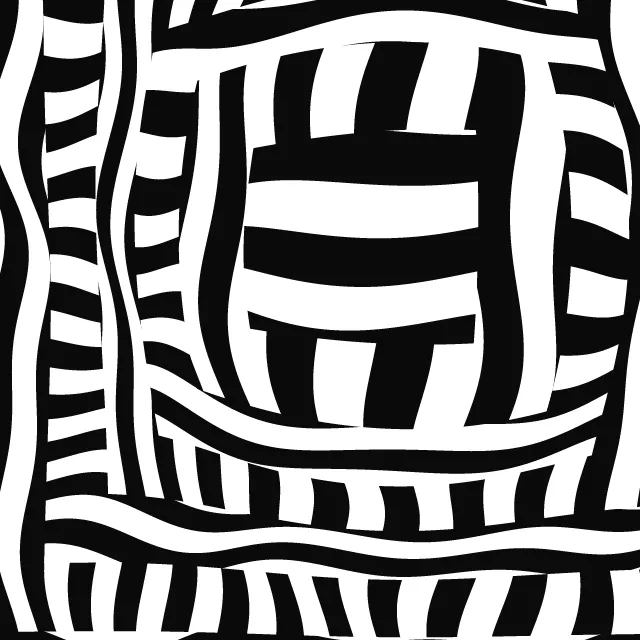
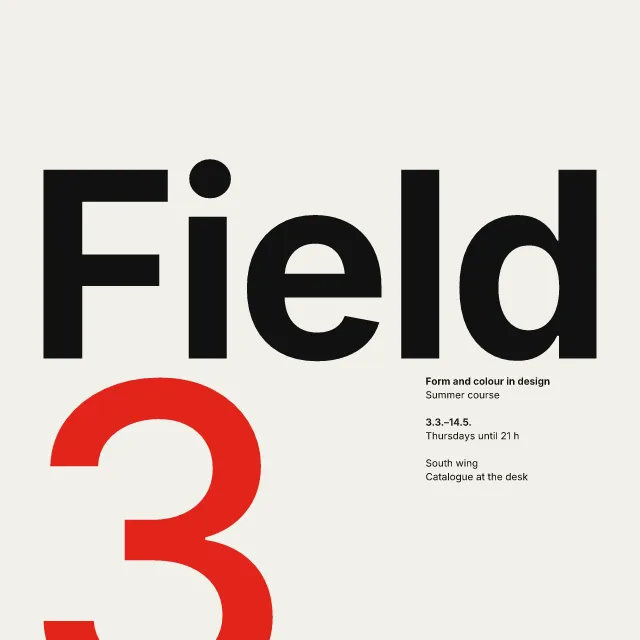
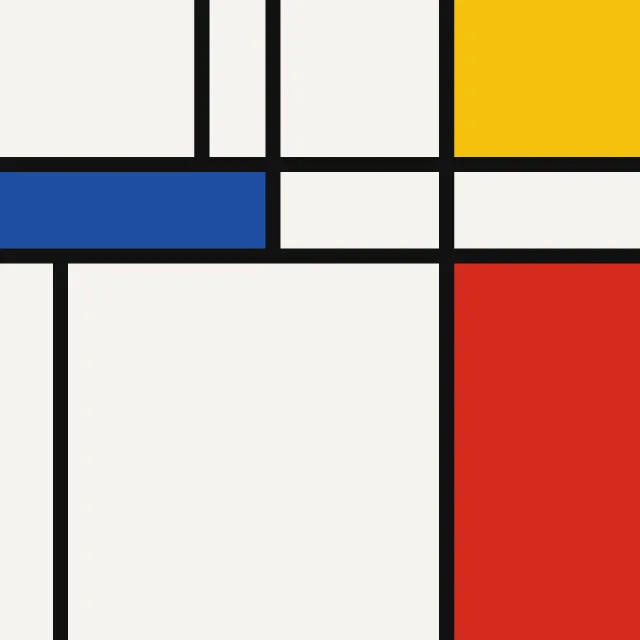

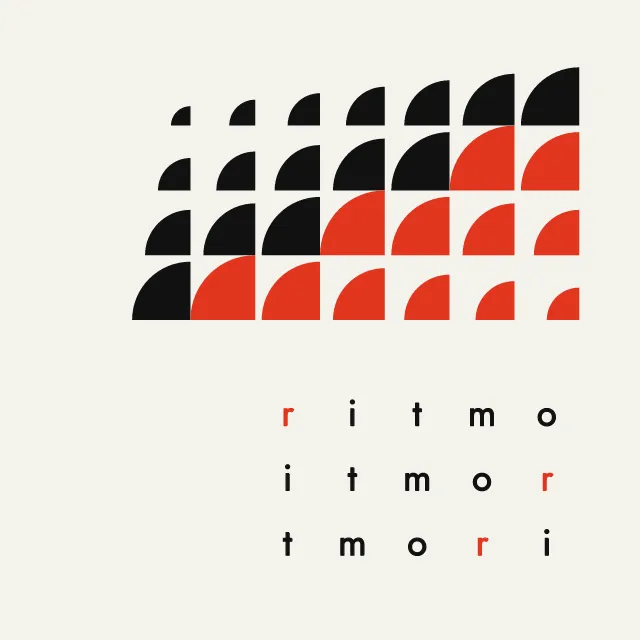
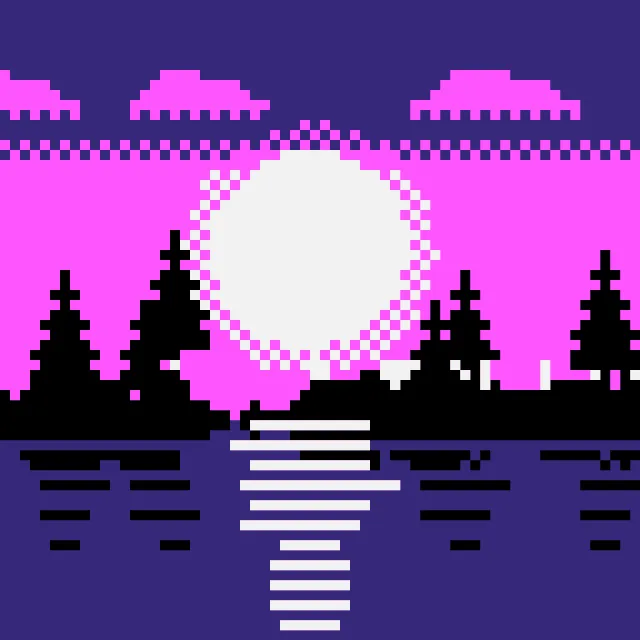

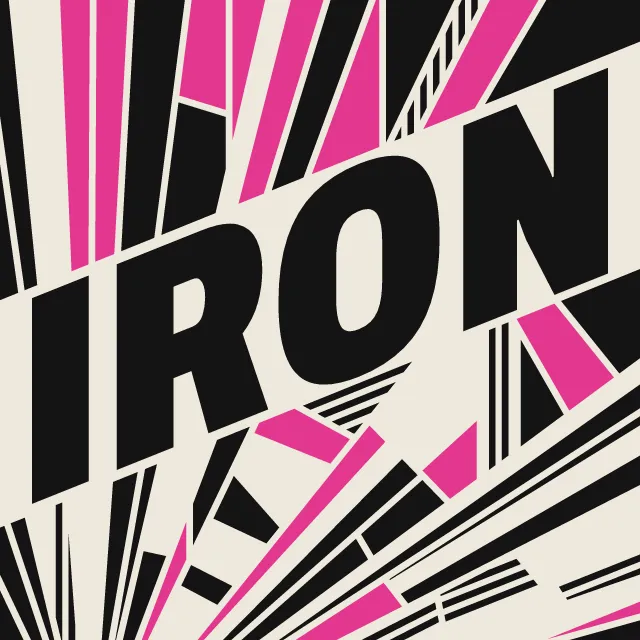
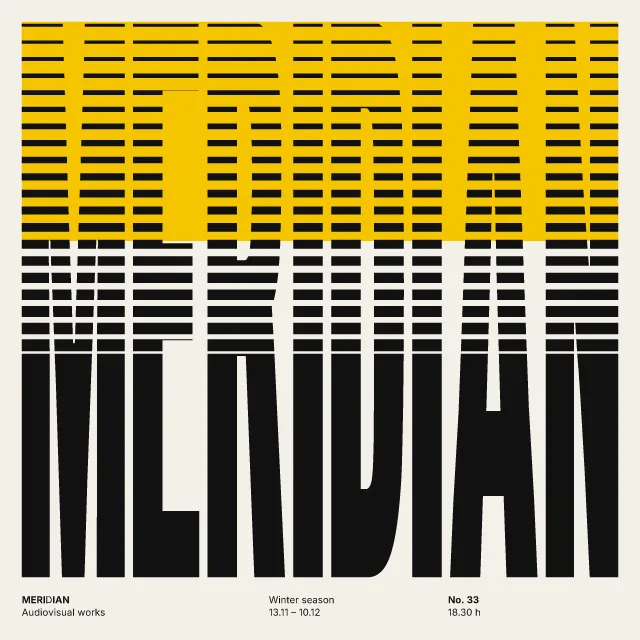
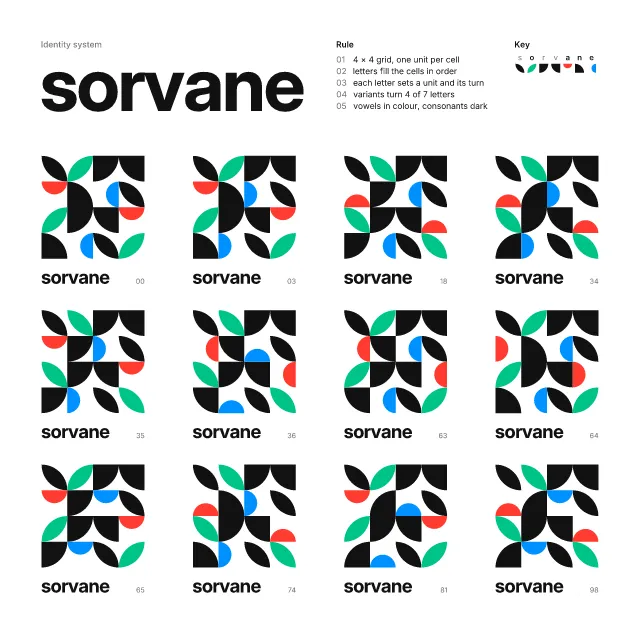
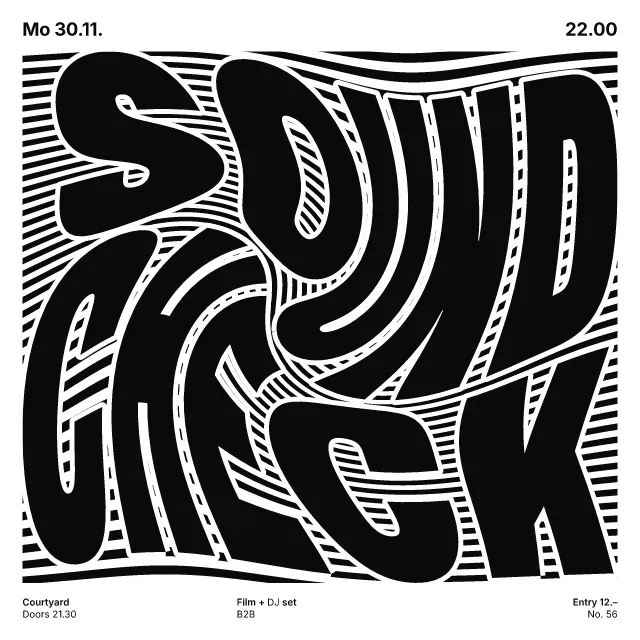
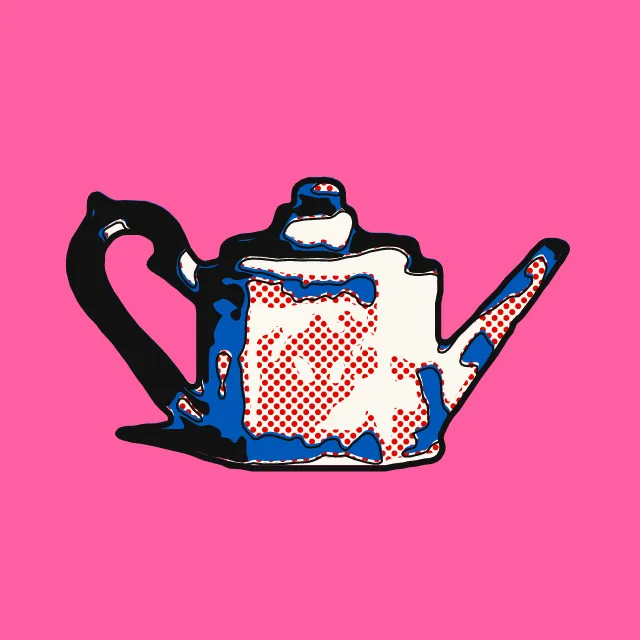
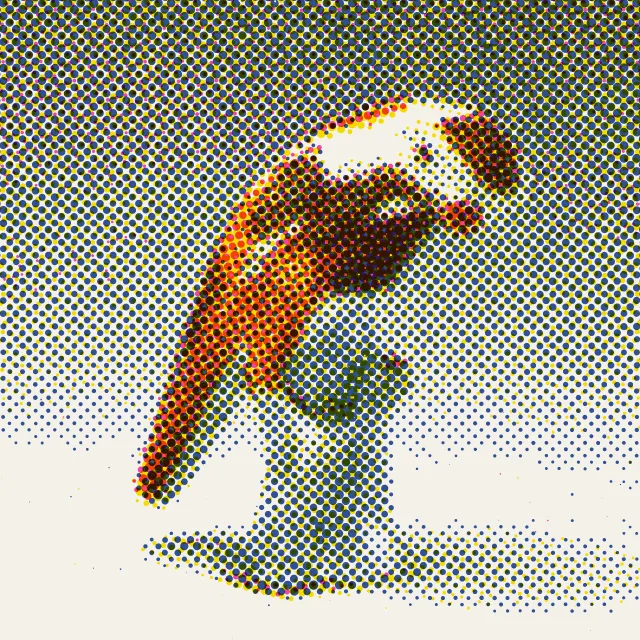
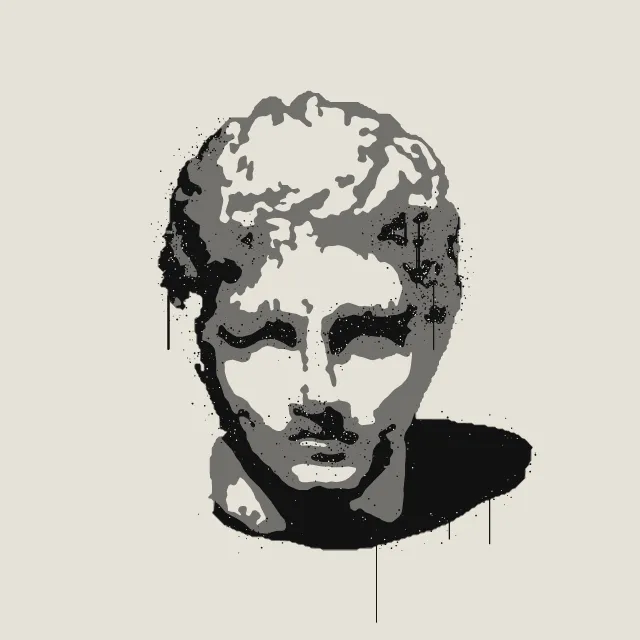
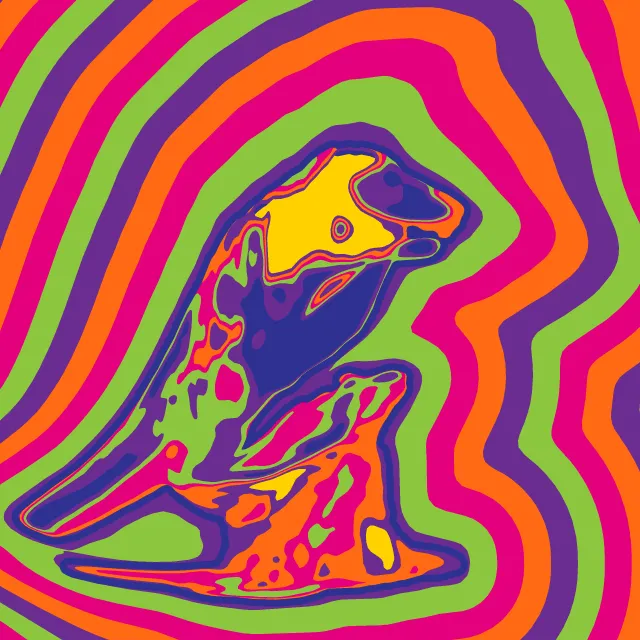
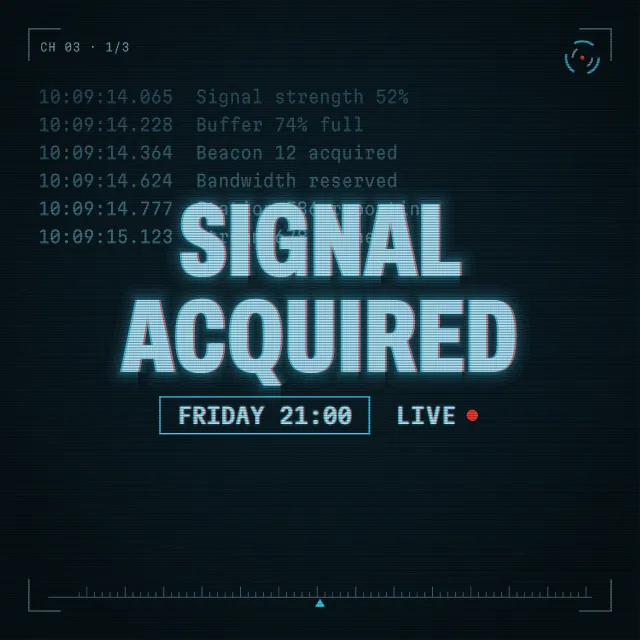
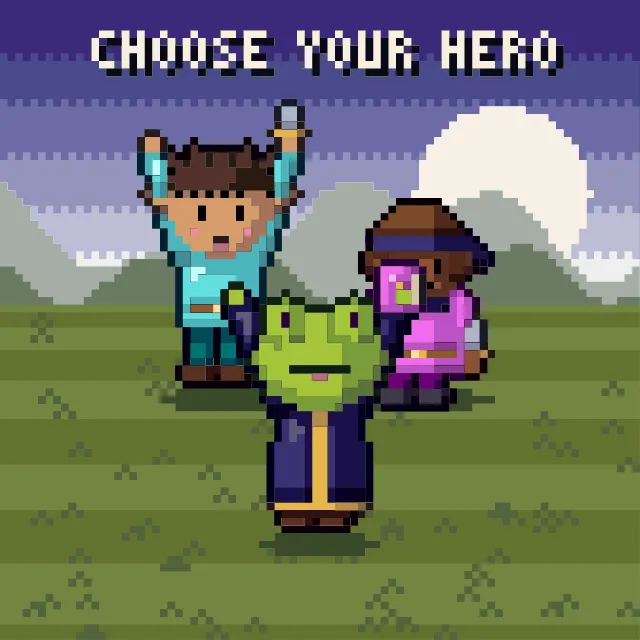
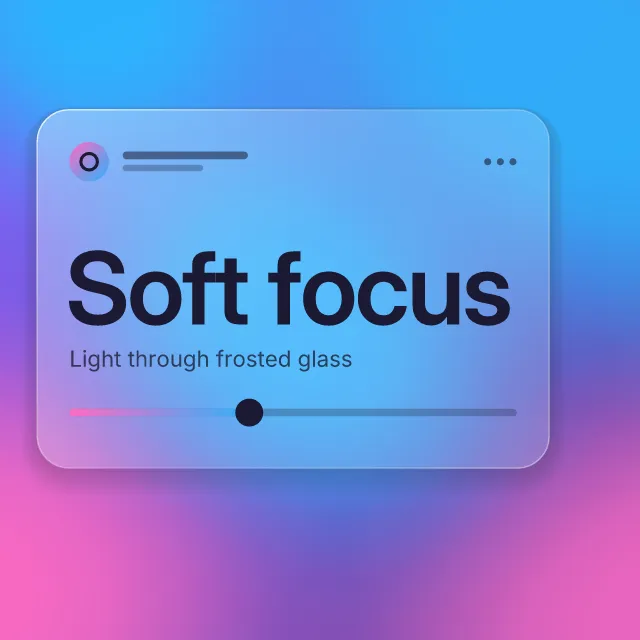

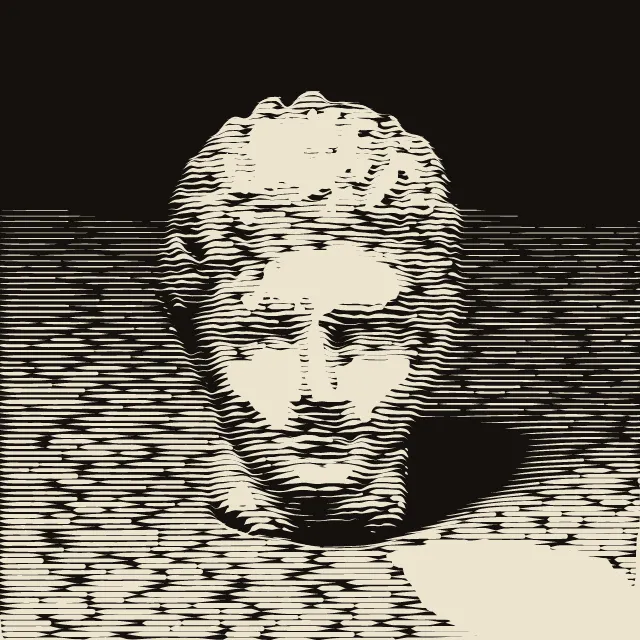

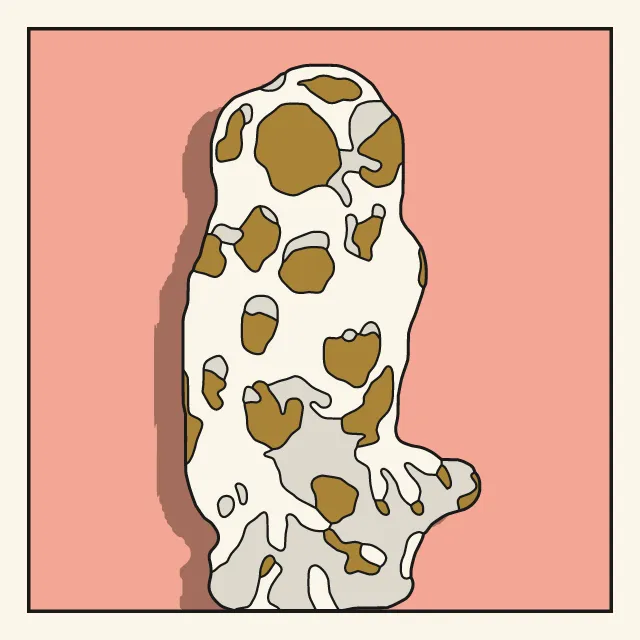
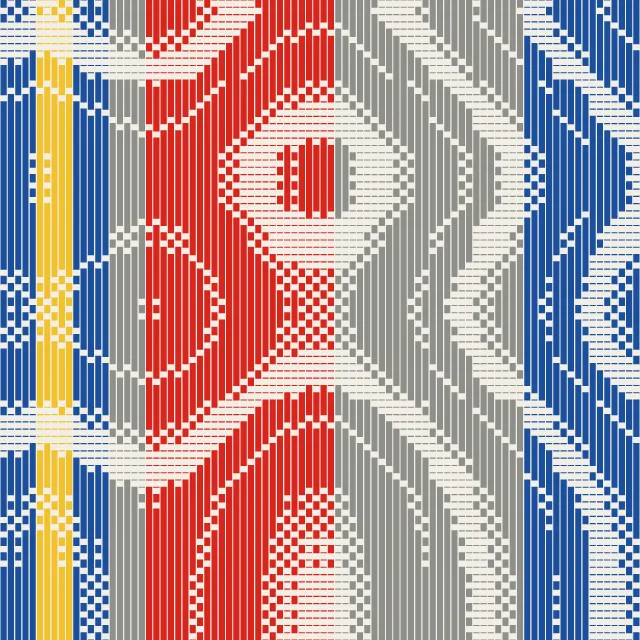
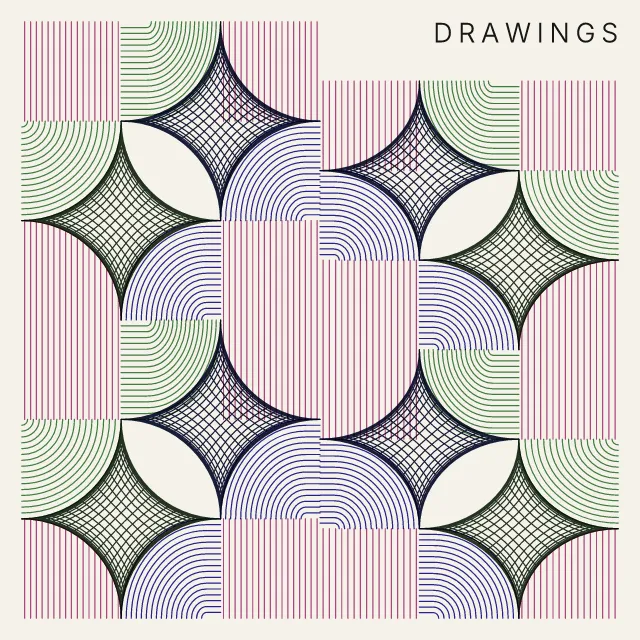


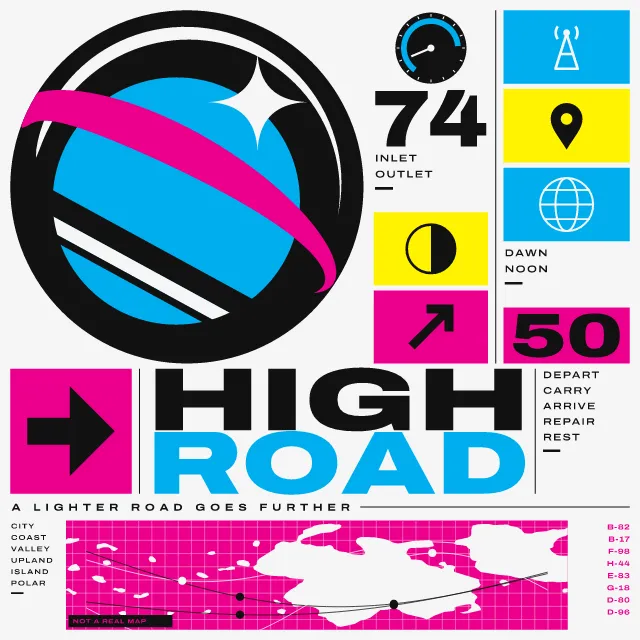
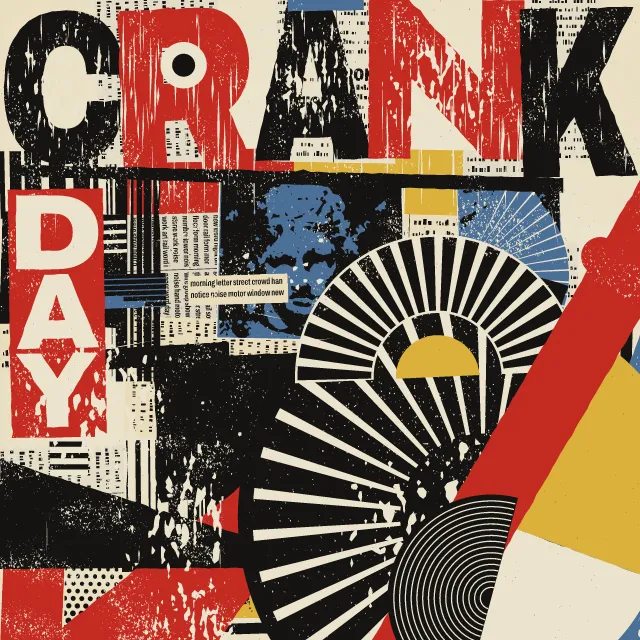
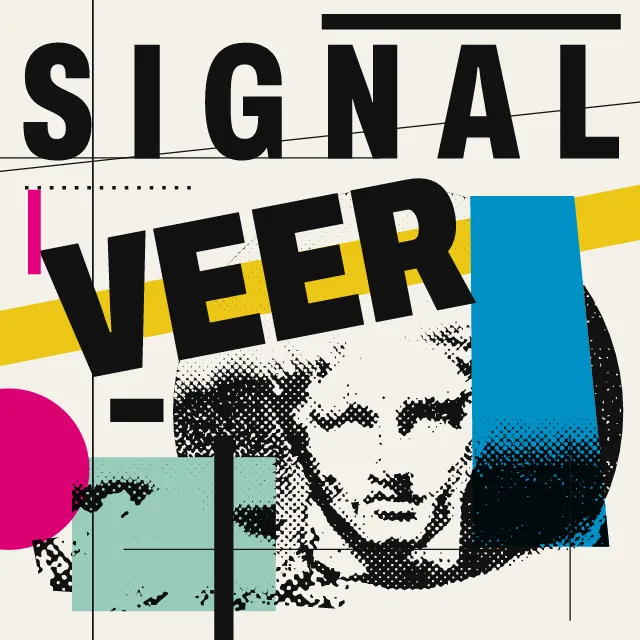
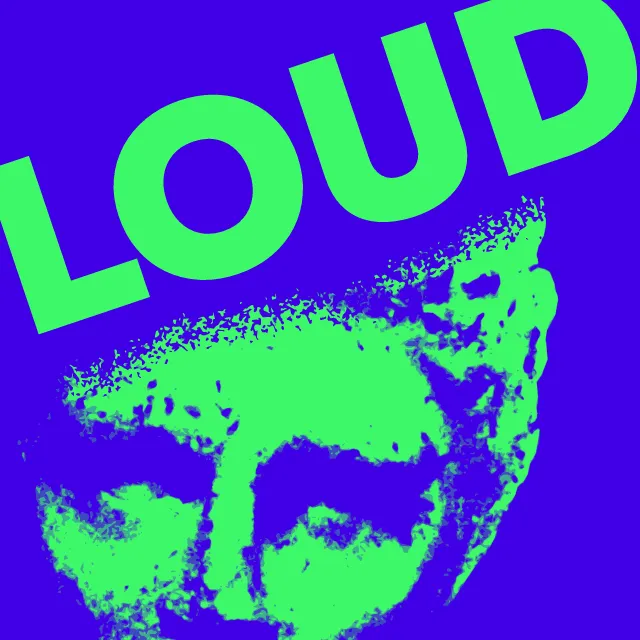
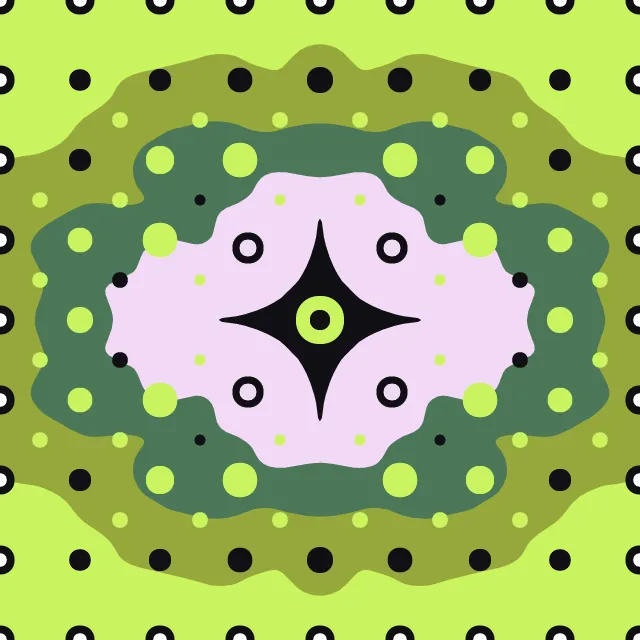
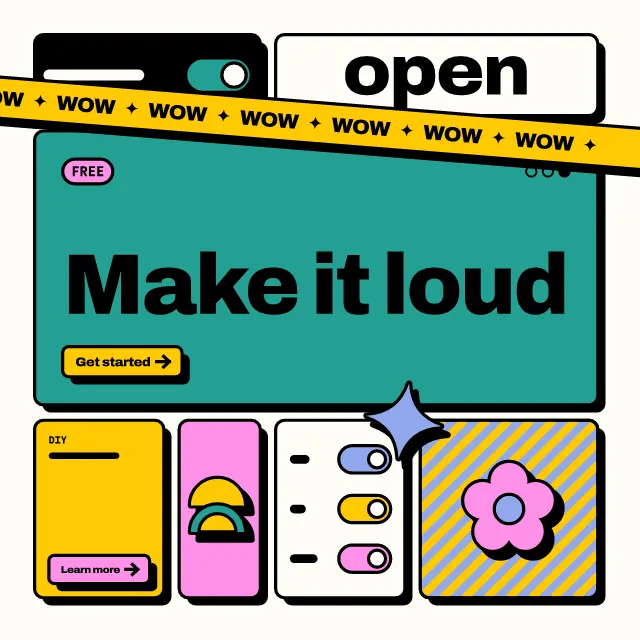
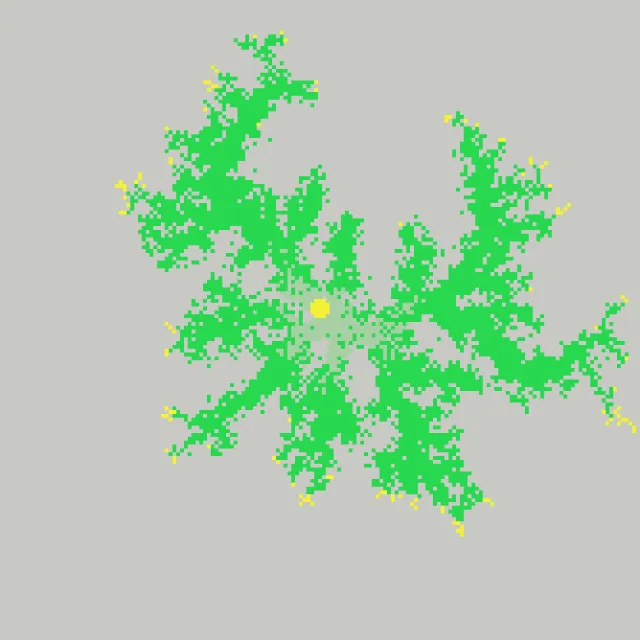
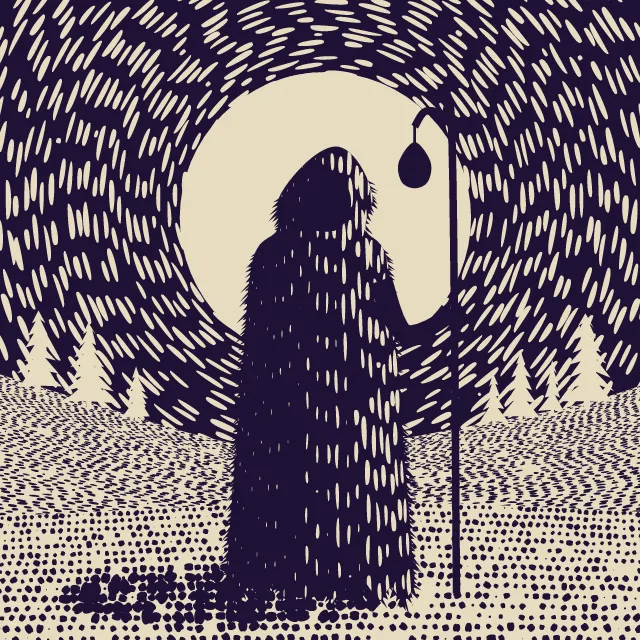

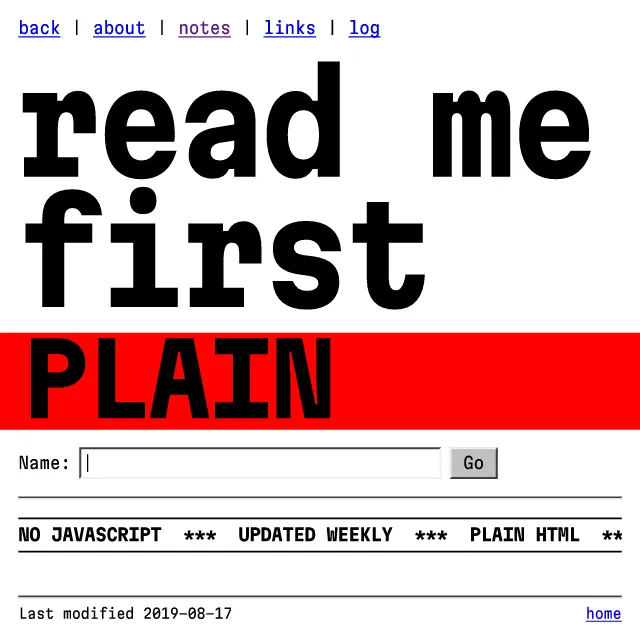

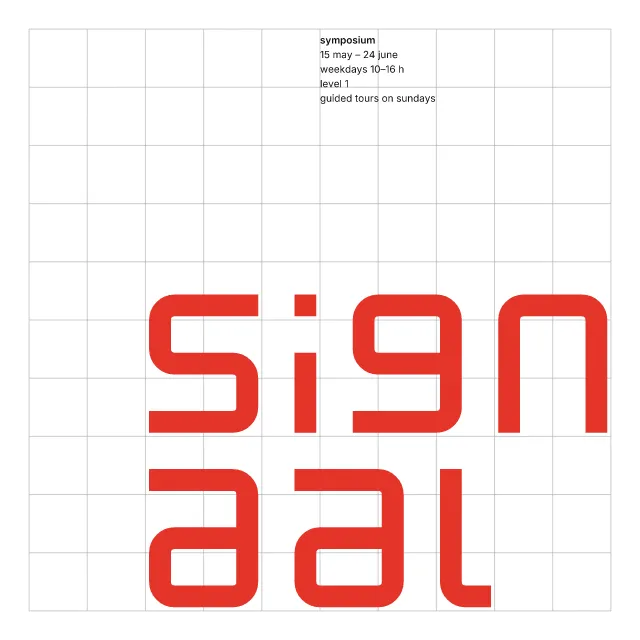

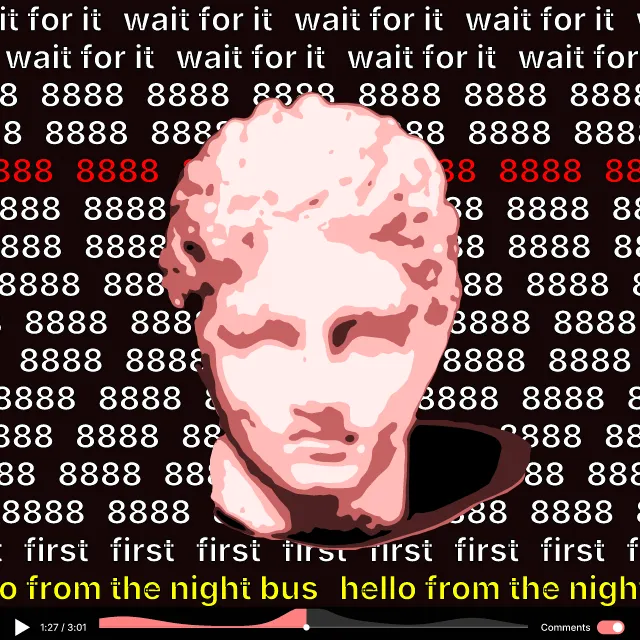
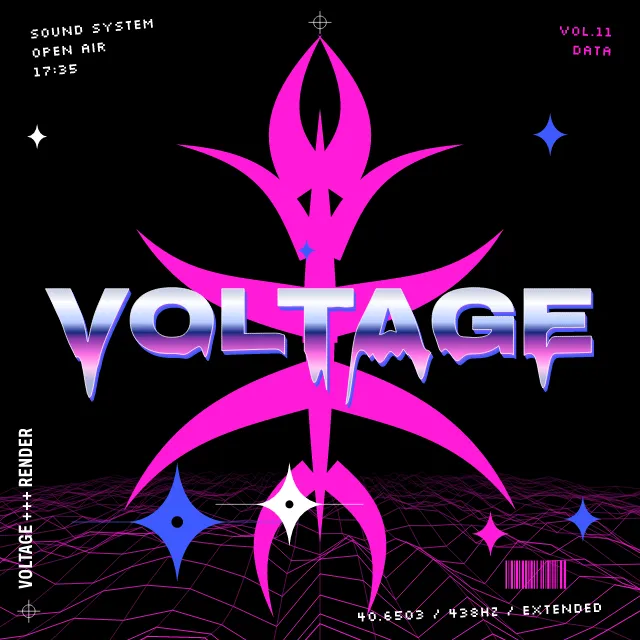
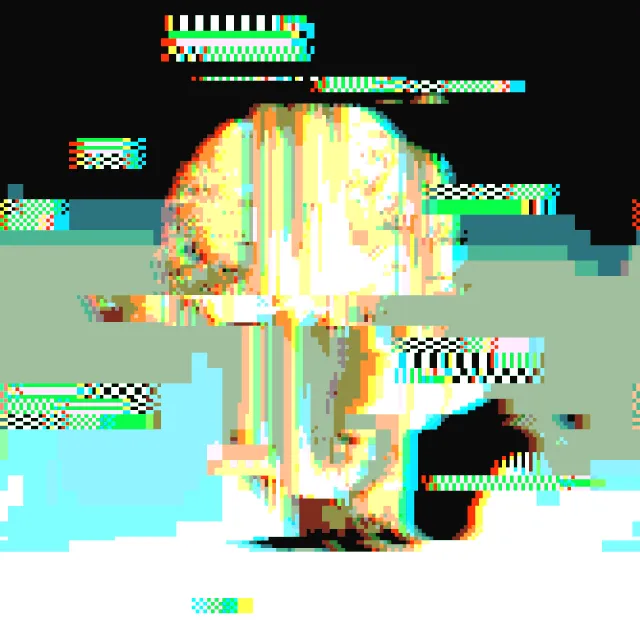
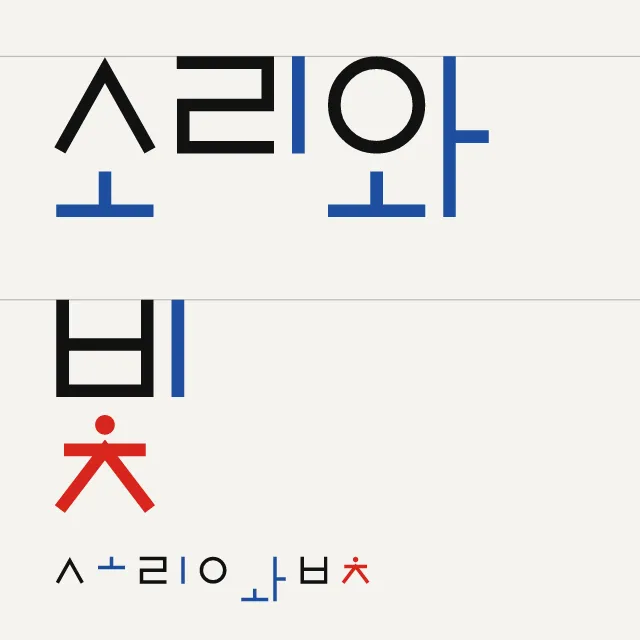
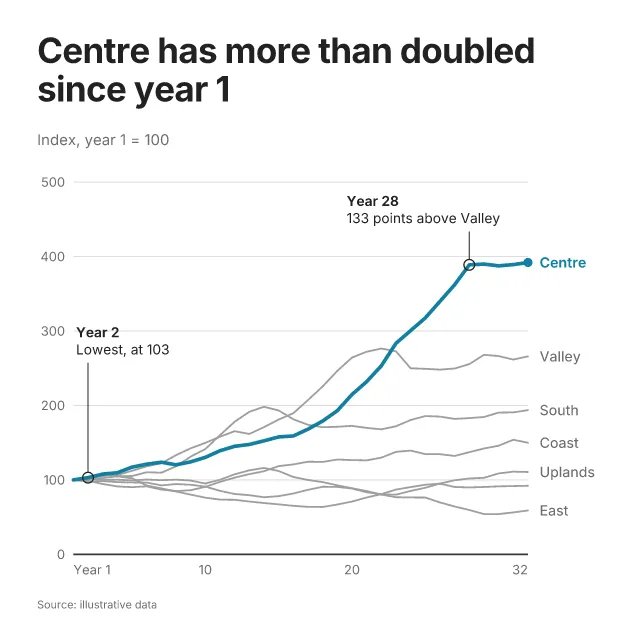





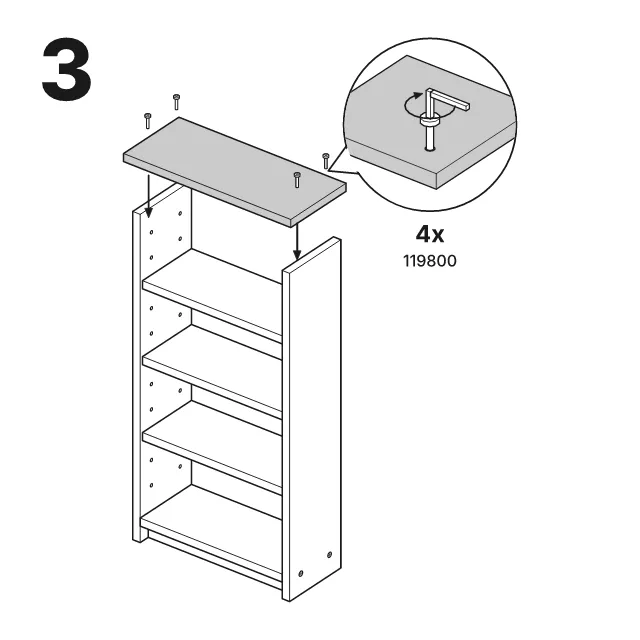
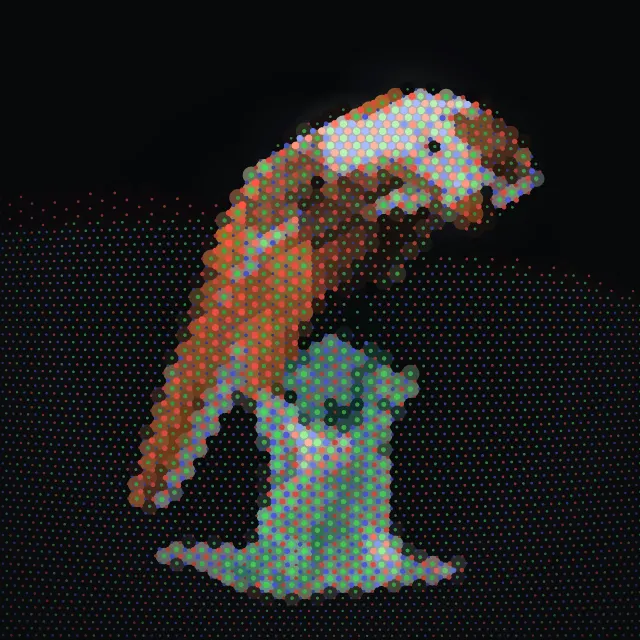

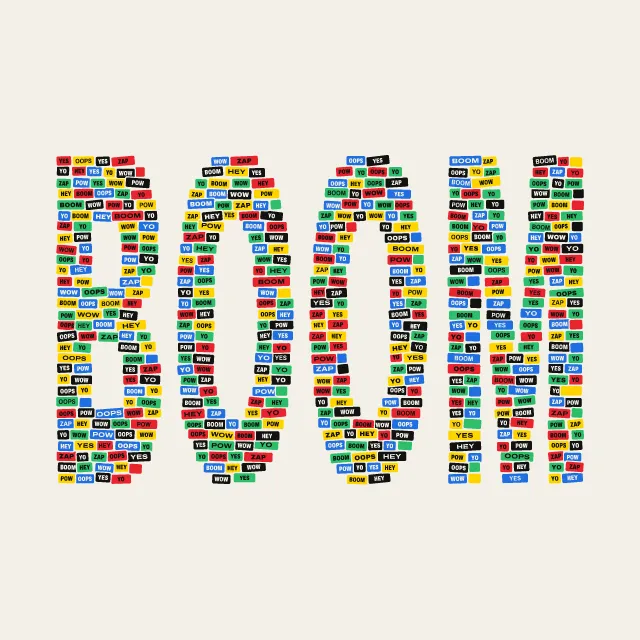
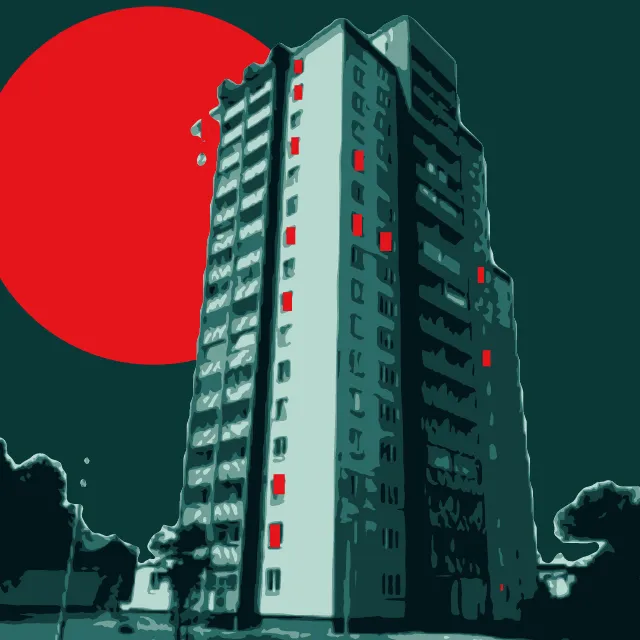
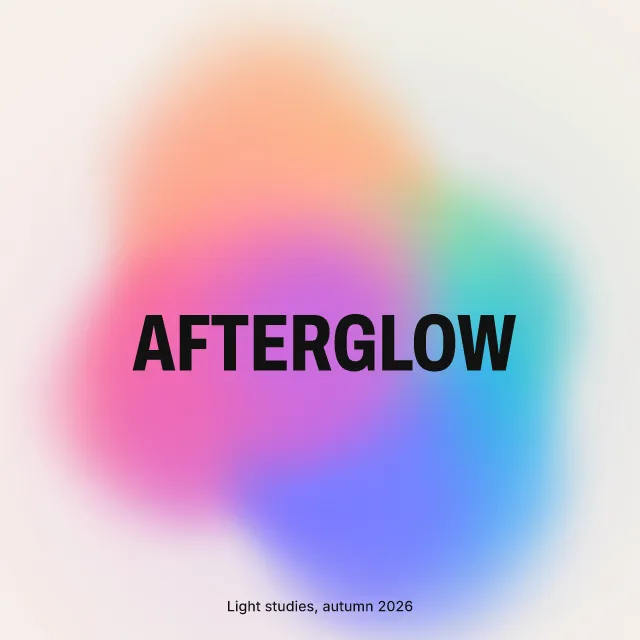


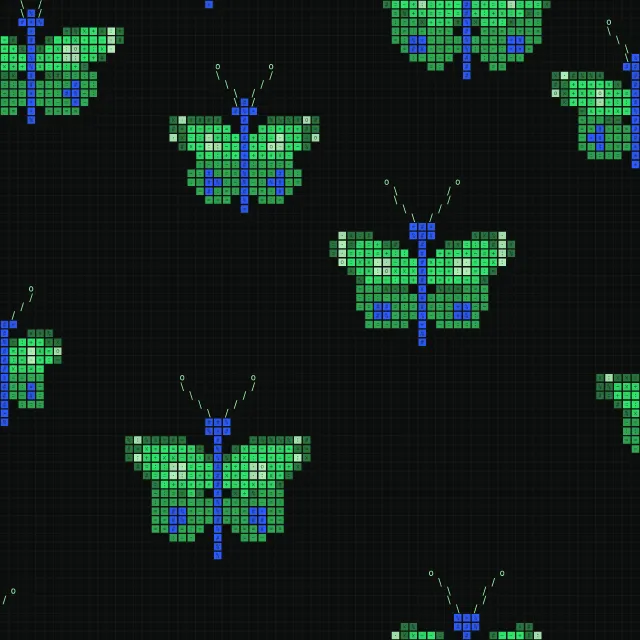
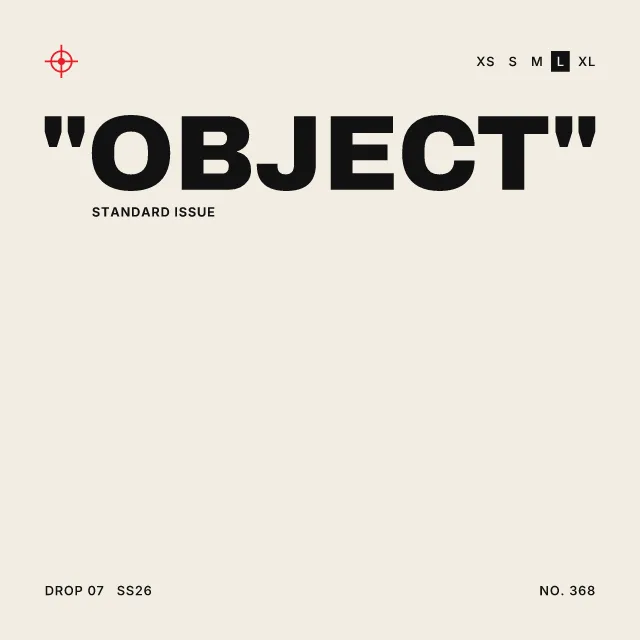


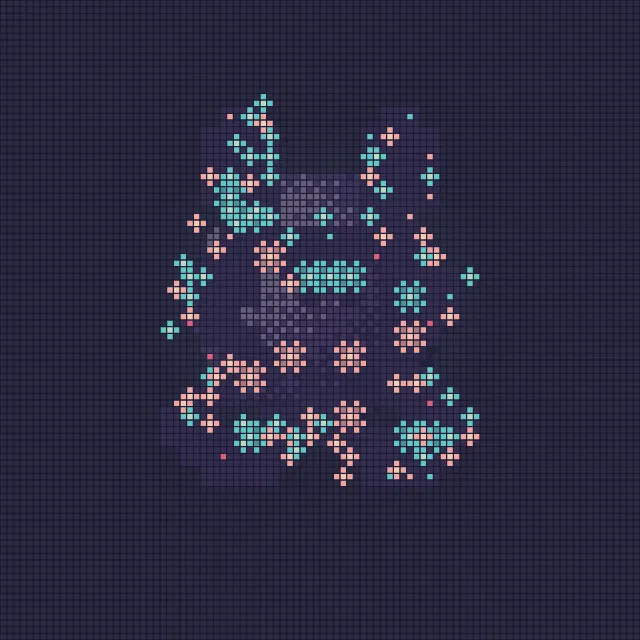


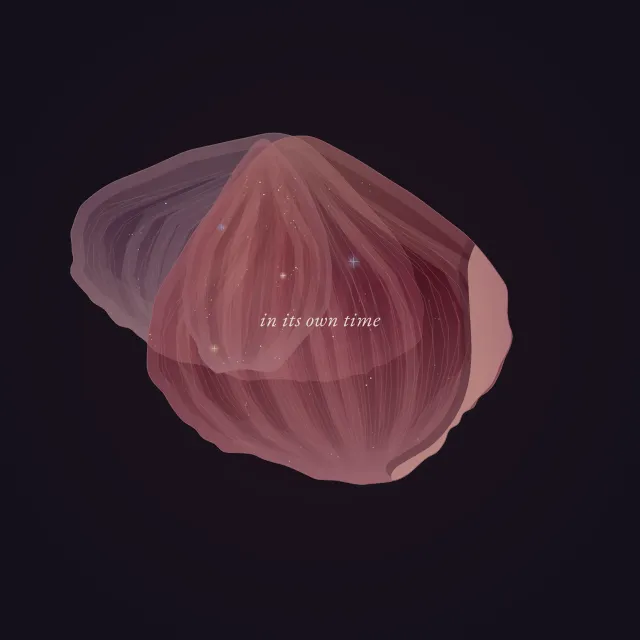






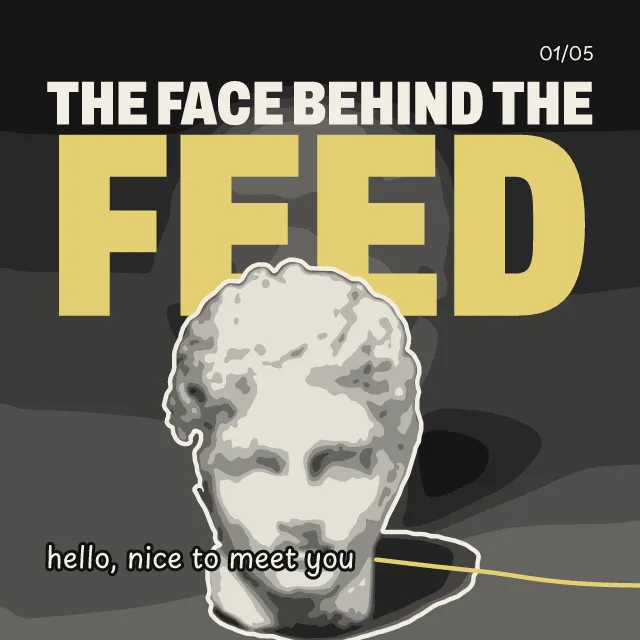


Your photo as a short run of slides in flat tones, each handed over to the next by a flood of fluorescent ink that runs through the shadows first.
What makes it Surge
These are the design choices this generator makes or lets you set. Where a choice says “Measured”, Morphogeny changed that control alone, kept everything else, and measured the picture: a number that moves with the choice, not proof that the picture reads as the style.
- Read as a sequence or story: panels, pages, scrolling, frames. Set by “Sequential narrative”.
- Unmodulated areas of colour. Set by “Flat fields”.
- Built from circle and line: Futura, Avant Garde, Circular. “Captions”: Geometric sans.
- Duotone, high-contrast or posterised photographs. Always.
- Two or three flat inks. Always.
- Day-glo inks and RGB brights. Always.
- Image or colour runs off every edge; no protective margins. Always.
- Animated, time-based work: titles, broadcast, video. Always.
How this generator works
- One photo becomes a short run of slides: the framing you choose, then closer cuts on its subject, each in flat tones of one ink on paper.
- Each slide hands over to the next through a flood of one fluorescent spot ink whose front follows the photo’s tones, shadows first, with the next slide rising behind it through its own tones.
- The flood only ever advances: every point is crossed once by the ink and once by the next slide in each hand-over.
What it never does:
- No embedded photo: every tone and the flood are traced shapes.
- No strobing and no hard cuts between slides: a slide only changes under the flood.
- No layout of any particular presentation tool or brand: the words are a counter and a title you type.
Every picture is a recipe: the variation number and the settings, kept in the page's address. Copy the link and the same picture comes back, in any browser. Random (or R) draws a new variation; ← and → step through them; S shuffles the settings; C borrows another style's colours.
About Duotone identity
Presentations and social posts often move from picture to picture with a single bright colour: a spot ink that floods the frame and pulls back to show the next image. It belongs with the duotone identities of the 2010s, which recolour every photograph in a fixed treatment so that any picture joins the same set.
This generator plays one photo as two to four slides: the framing you choose, then closer cuts on its subject, each traced into a few flat tones of one ink on paper. Between slides a fluorescent flood runs through the photo. Its front follows the picture’s own tones, so it takes the shadows first and the light parts last, and the next slide rises behind it through its tones. Choose where the flood starts, how deep it runs and how it paces.
Every tone and every flood is a traced shape, so the SVG stays sharp at any size and holds no copy of your photo. Your photo is read only in your browser and is never uploaded.
Duotone identity: 2015–today. What the controls mean: Help.
From film wipes to fluorescent photo transitions
Moving from one picture to the next has long been a design choice of its own. Film editors used wipes, where a line or shape pushes one shot off the screen. Slide shows run on two projectors dissolved one picture into the next. Presentation software later put dozens of such transitions on a menu, many of them borrowed from film.
In the 2010s, as brands moved onto screens, the transition became part of how an identity looks. Duotone identities recoloured every photograph in one fixed treatment, so any picture joined the same set, and a single bright spot colour became the thread between them.
Short videos and slide decks now often hand over from picture to picture through that colour. The flood in this generator grows from that way of working: one fluorescent ink, flat tones, and a hand-over that reads the picture itself instead of sliding across it.
How to make a photo transition with a fluorescent flood
You add a photo and type a Title for the foot of each slide. Sequential narrative sets how many slides the photo plays as, from two to four, and Cut in how close the later ones crop on the subject. Flat fields sets how many tones of the ink each slide is cut into, paper included.
Flood depth sets how far the fluorescent ink runs before the next slide rises behind it. Follows the tones decides how much the flood reads the picture: at 0 it wipes straight across, and higher it runs through the shadows first. Direction picks where each flood starts: Across, Up, Diagonal, Out from the subject, or Back and forth. Pace sets Smooth, Steady or Sharp motion, and Captions picks Italic serif or Geometric sans.
What to make with a photo slideshow transition
One portrait or product photo becomes a short looping video. Use the story format for short vertical videos, the square format for a social post, or the landscape format to open a presentation. The title lets you name an event, a launch or an open studio.
A still shows two framings and the ink mid-flood, so the PNG or SVG also works as a poster at A3. Your photo is read only in your browser and never leaves your device. Exports are SVG, PNG and video, and they are yours to use.
Tips for a photo transition that reads at a glance
Choose a photo with one clear subject and real shadows. The closer cuts look for the subject, and the flood follows the dark parts, so a flat, evenly lit picture gives it little to follow. Keep Follows the tones well above 0, or the flood becomes a plain wipe.
Keep Flood depth low to moderate, because a deep flood covers much of the frame at once. Fewer Flat fields give bolder shapes, while more keep the detail of a face. Pick a palette with one truly fluorescent colour, since the flood takes the palette’s most fluorescent ink. Watch the whole loop once before you export it.
Use it from code
The recipe below draws the picture this page opens with. Copy recipe gives you the one on screen. Agents can render recipes to SVG or PNG through Morphogeny's MCP server (morphogeny_render); the same recipe always gives the same SVG.
{
  "tool": "surge",
  "v": 1,
  "seed": 1,
  "format": "portrait",
  "params": {
    "slides": 3,
    "close": 1.7,
    "tones": 4,
    "surge": 0.16,
    "follow": 0.6,
    "direction": "across",
    "feel": "smooth",
    "face": "serif",
    "title": "Open studio"
  },
  "palette": "spotify-duotone"
}
Open this recipe: /surge/#seed=1&v=1. A plain-text version of this page:/surge.md.